
Hide a page in the Navigation Menu
At times, you may wish to hide a page from a navigation menu so that visitors cannot find it unless they have a direct link. Here are the steps for hiding a page:
- 1
-
Open the Site Map Editor
First, open the Site Map Editor by clicking Site Map in the white Admin Toolbar at the top of the page.

- 2
-
Go to the page you wish to hide
-
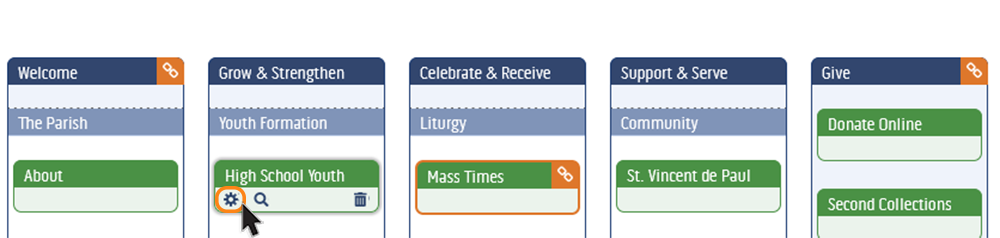
Hover over the page and click on the Page Settings icon (next to the magnifying glass icon) to access more options.
- 3
-
Turn off navigation view
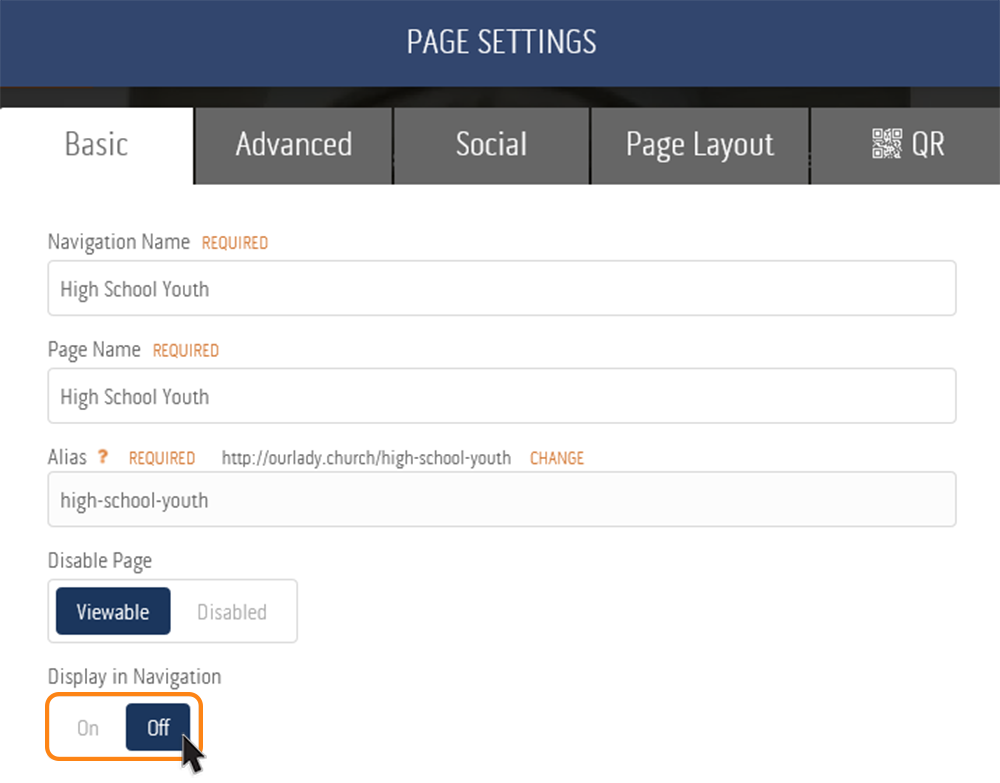
Under the Basic settings tab, there is an option to Disable in Navigation. Select off.
- 4
-
Save, publish, and you're done!
Your page will now be hidden from the navigation menu. The page is still fully operational and can be visited by entering the page alias in a browser's address bar, or using a hyperlink from another place.