
Creating a Pop-up Alert Box
Bring a Pop-up to your site’s homepage straight from the Admin Center. You won’t need third-party code, and there’s no developer help required. As an Admin User, you can easily create beautiful, attention-grabbing pop-up windows that look great and get noticed.

Configure your Pop-up
- Log into your site.
- Go to the Admin Center.
-
Click the Pop-up tab on the far right side.
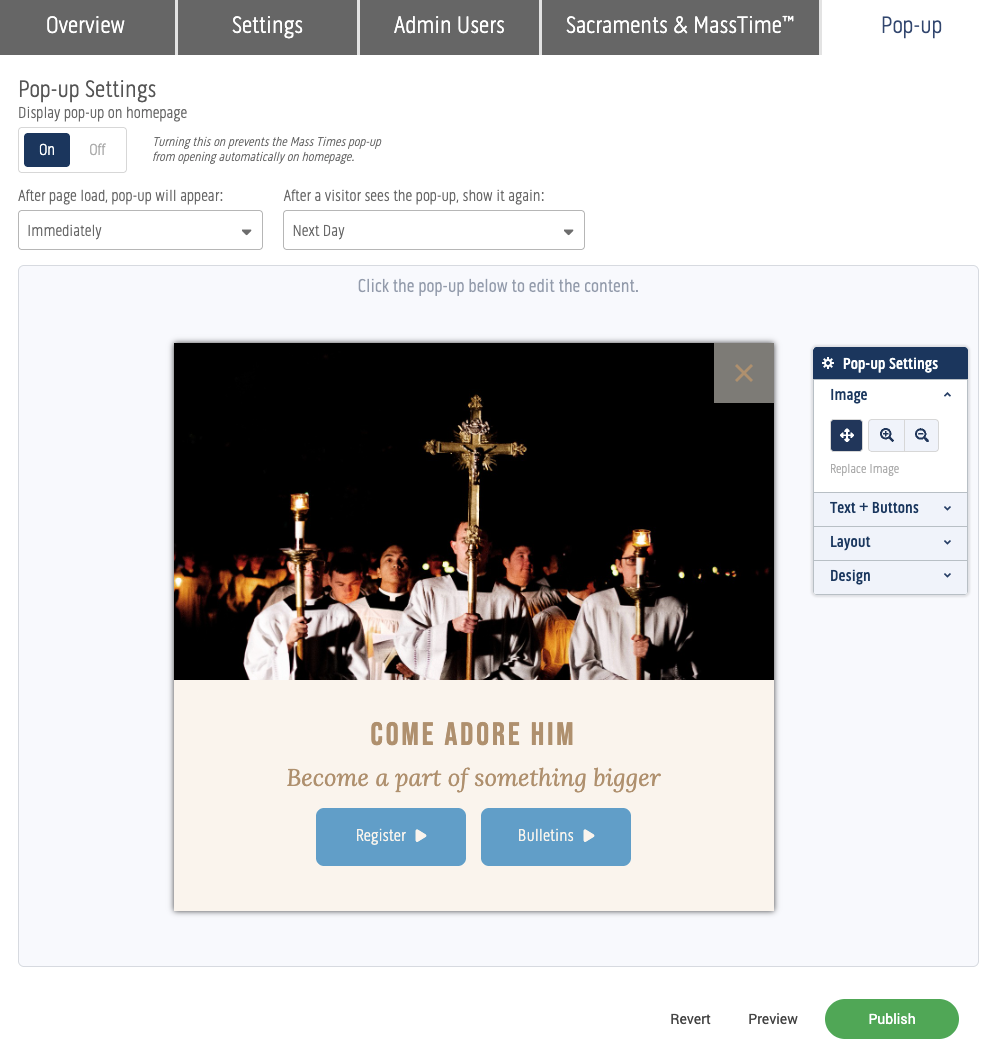
Pop-Up Admin Tab
Good to Know Before You Start
- Pop-ups currently display on the homepage only.
- Turning the pop-up toggle on or off does not publish it right away. You can build and save your pop-up whenever you like, and it only goes live once you click Publish.
- Create and Publish - You can build and save your pop-up anytime and Publish to save your work.
- Take your Pop Up Live - The pop up will only be live when Pop-up Settings is toggled On.
Note:
If your parish has Mass times set to open and close automatically ("set and forget"), turning your pop-up on will temporarily override that automatic display. This is intentional. A pop-up you've turned on is treated as a priority, timely message. When you turn the pop-up off, it simply won't show to visitors, so your Mass times display resumes as normal.
Setting Up your Pop-up
The configuration tools for creating your Pop-up are the same as those in the Headline Section.
- Turn the Pop-up on using the toggle. (You can leave it off while you build it; nothing displays until you toggle on and then publish.)
- Set the timing:
- Choose how long after the homepage loads before the Pop-up appears.
- Select the time interval before a returning visitor will see the Pop-up.
- Add your content:
-
If your Pop-up uses an image, you can adjust the placement, or increase/decrease the view.
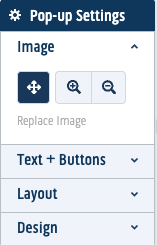
Image Settings -
To add or remove a Title, Caption, or Buttons, use these settings to configure them:
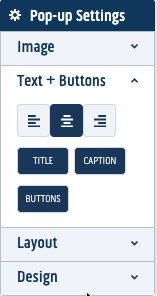
Text & Button Settings -
Choose a layout: Text with an image or Text only. Both options include title, caption, buttons.
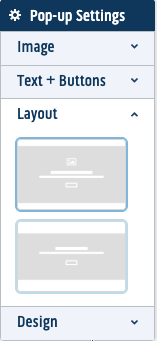
Choose Image + Text or Text Only -
Pick a size: small, medium, or large. All three sizes display at the same size on mobile, so visitors can easily close the pop-up.
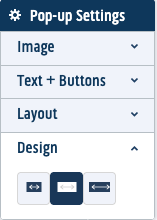
Size Options
-
- Click Publish to make your Pop-up available to your visitors.
- Remember, the Pop-up only displays when the Pop-up Settings is toggled On.
Your Pop-up Matches Your Theme
Your pop-up will automatically match the look of your site’s current theme, so it blends right in with your fonts and colors; no extra setup required. If you decide to change your theme later, the pop-up updates automatically to stay consistent.
Editing or Reverting
- Make changes anytime and they'll be saved as a draft.
- Click Revert to discard unpublished changes and go back to your last published version.
- Use Preview to see how the pop-up will look, including a mobile preview, before publishing.
How Visitors Close the Pop-up
Visitors can dismiss the Pop-up in two ways:
- Clicking the Close button, or
- Clicking anywhere on the overlay outside the pop-up box.
Questions?
Reach out to the support team if you need help setting up yours.