
How to add members to a group
After you create a group, it's time to add group members! Here are the ways you can add members to a group.
In this article:
Add existing organization members to the group
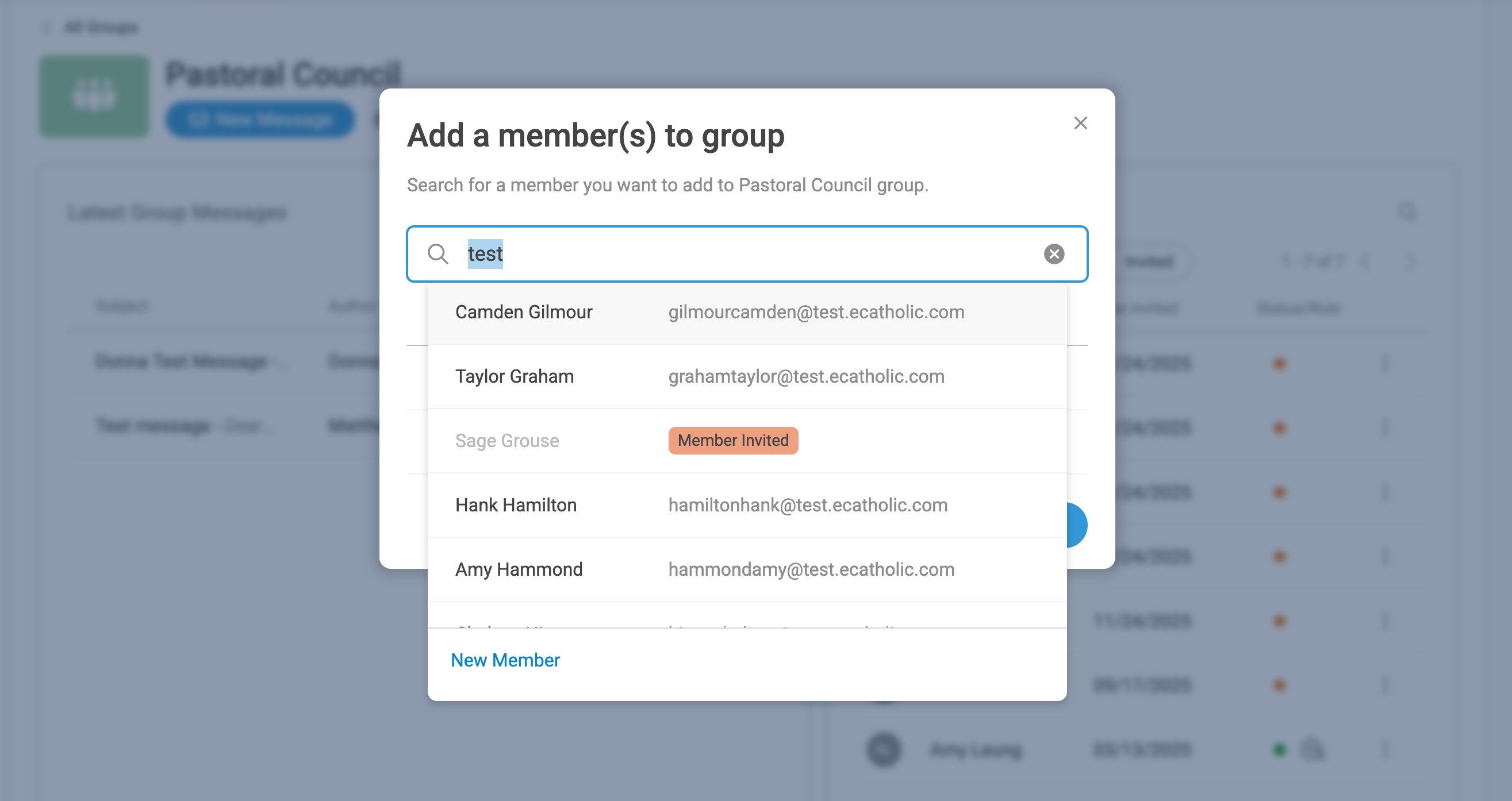
Navigate to the group and click Add Member(s). On the next screen, use the search bar to search for members that have already been added to your Connect organization. Locate and select the member you wish to add to the group.
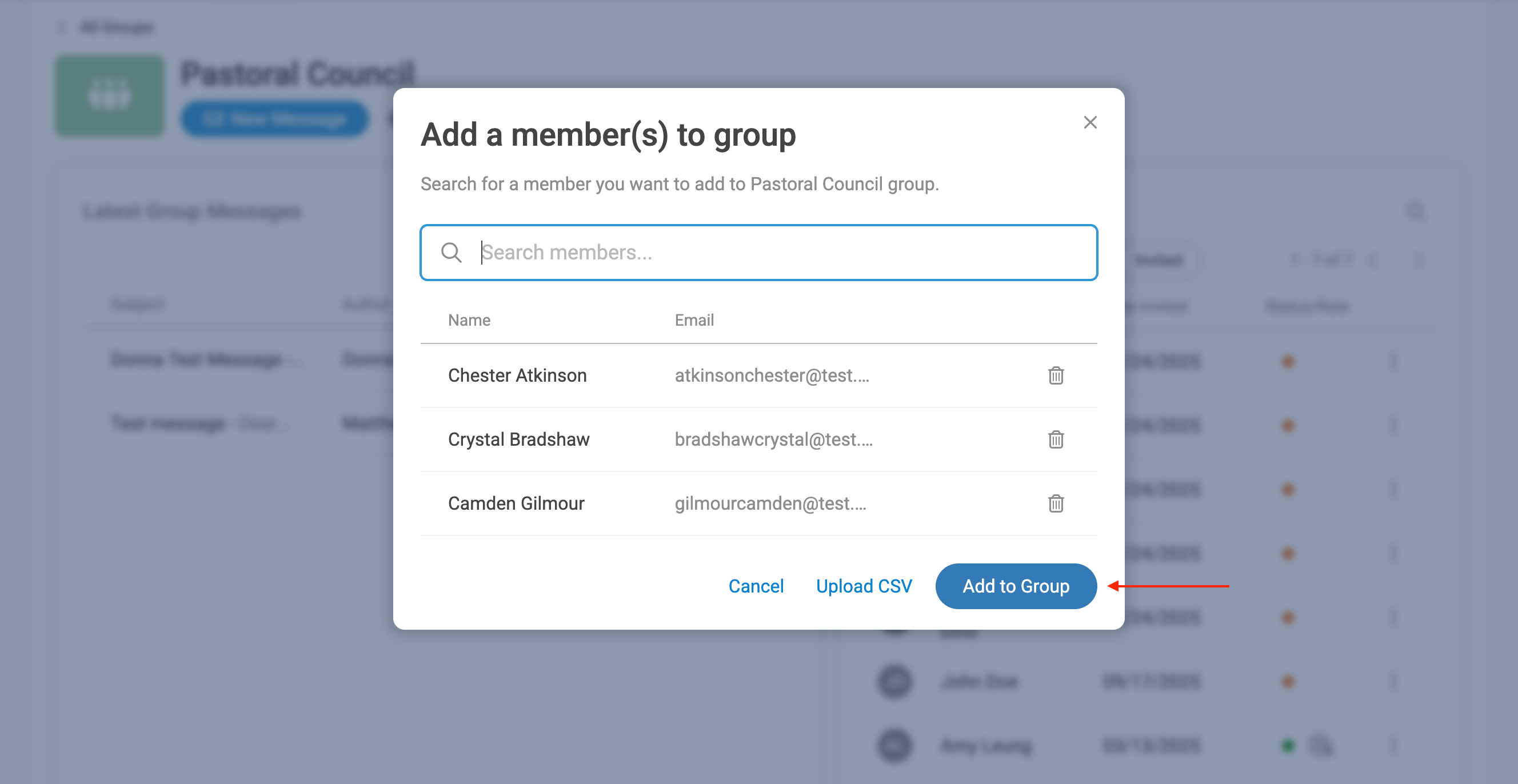
Repeat the process until you have selected all the desired members, then click Add to Group.
Add a new member to the organization & group
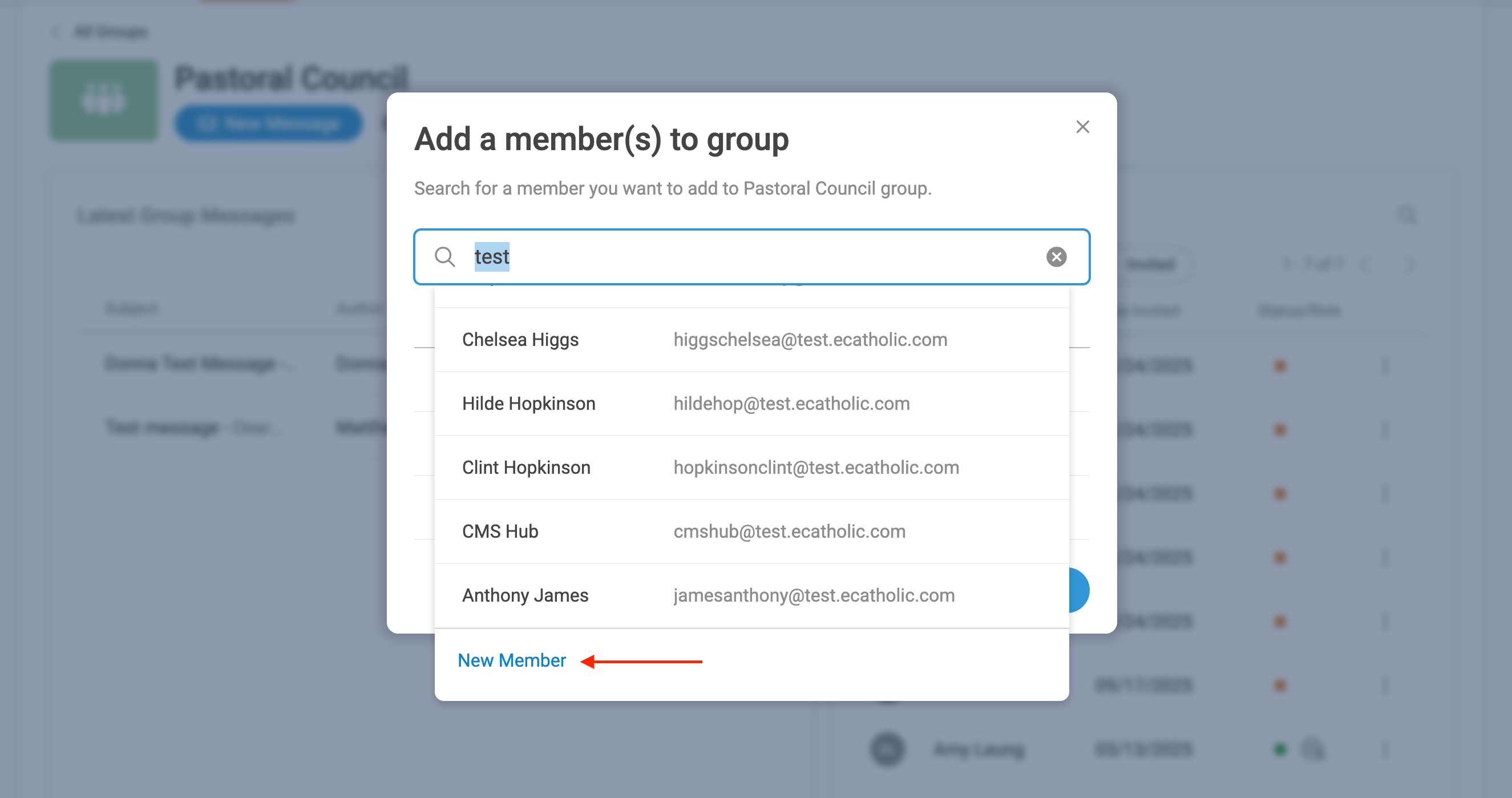
Navigate to the group and click Add Member(s). On the next screen, click the New Member button. You will then be prompted to enter the new member's details: Email, first name, last name, and (optional) phone number. That new member will receive an email prompting them to join your new group, and will also be added to your list of organization members.
Bulk add members to the group

If you want to get up and running quickly with many group members, you may import existing member data into a specific group via CSV using the Upload CSV option. Learn more here: How to import group members.
New organization members added to a group must have first accepted the invitation to join the organization before they may receive messages from the group.
Now that you have created a new group and added members to that group, you are ready to send a message to your new group! Click the New Message button to begin composing a message!