
Building Your Own Template
Connect makes it easy to create your own email templates so they fit the needs of your parish, school, or ministry. If you use the Groups feature, you can tailor email templates for each group, so everyone gets messages that feel just right. For example, your Knights of Columbus organization may want their logo front and center at the top of their quarterly newsletter, so you create a template just for them. Or maybe you'd like to have a template ready to send your weekly bulletin with just a few clicks. Build your templates for the way you work and the updates you share.
Designing Your Template
Build your template the same way you'd build any message: start a new message, then use Modules and Sections to lay out the design. See Creating and Sending a Message for the full walkthrough of the composer, and Connect's Modules Toolbox for details on each individual module's settings.
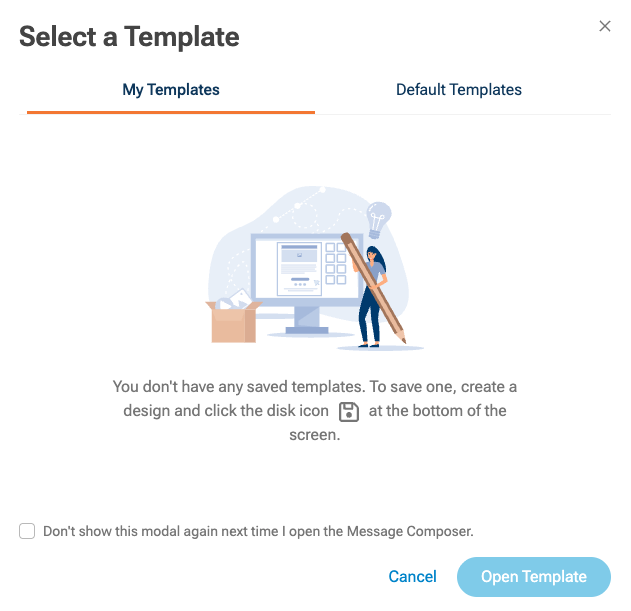
A template can include anything a regular message can: images, headings, paragraphs, a footer, and so on. Once the design looks the way you want it, you're ready to save it.
Saving Your Design as a Template
- With your design built out on the canvas, look at the bottom toolbar of the composer. Between the Templates button and the trash icon, you'll find a plain disk icon.
- Click the disk icon to open the Save as Template window.
-
Enter a Template Name (required). There's no category, tag, or description field, just the name.
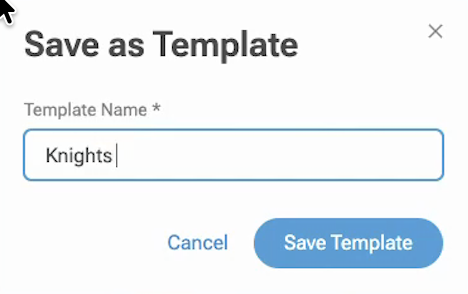
- Click Save Template.
A green confirmation message appears in the top right corner: "The template has been saved." Your original message draft isn't changed or replaced. The template is saved as its own separate item, so you can keep working on (or send) the message you built it from.
Using a Saved Template
- Go to Messages and click New Message.
- In the Select a Template window, choose the My Templates tab.
- Your saved template appears as a thumbnail with its name underneath. Select it and click Open Template.

Your saved design loads into a new message draft. Keep in mind that only the design carries over: the To and From fields show their usual defaults, and the Subject line is blank, so you'll need to fill it in each time you use the template.